If you’re reading this, it’s probably because someone told you your SQL Server “needs to be properly configured,” so you looked up Microsoft’s official recommendations. You applied them, set MAXDOP to 8, bumped cost threshold up to 50, and called it a day. And here’s the catch: you may have just misconfigured your server precisely by following the standard to the letter.
In this post I want to make a case I’ve been repeating to colleagues and clients for years: SQL Server best practices aren’t a list of values you copy and paste; they’re a starting point you tune to your specific server. Let’s dig in.
What are SQL Server best practices
SQL Server best practices are a set of configuration recommendations (instance settings, memory, parallelism, tempdb, maintenance) aimed at delivering performance, stability, and predictability. Microsoft publishes official guidance for many of these settings, and it’s an excellent reference. But that’s exactly what it is: generic guidance for “any server,” not for your server.
The nuance matters, and there’s an aggravating factor: many of those default thresholds haven’t changed in years —sometimes decades— and have fallen behind modern hardware. So to tune your instance properly, the official docs aren’t enough: you also need expert knowledge from the community —well-known blogs, MVPs, people who test these settings in production every day— that keeps the guidance current.
Why the default value is almost never the right one
Take the most classic example: cost threshold for parallelism. The default is still 5, a number from the ’90s that’s laughably low today: it lets trivial queries go parallel for no reason, generating CPU overhead and contention. Everyone agrees you should raise it, but that’s where the consensus ends: the recommended range runs from 20 to 50 or higher, depending on the real cost of your queries.
You can check it before touching anything:
-- Review current parallelism configuration
SELECT
    name,
    value_in_use,
    description
FROM sys.configurations
WHERE name IN ('cost threshold for parallelism', 'max degree of parallelism')
ORDER BY name;
And if you want to know what cost threshold actually makes sense, look at the estimated cost of the plans running on your instance:
-- Inspect estimated subtree cost of cached plans to size cost threshold
SELECT TOP 50
    qs.execution_count,
    CONVERT(DECIMAL(18, 2), qp.query_plan.value(
        '(//StmtSimple/@StatementSubTreeCost)[1]', 'float')) AS estimated_cost,
    SUBSTRING(st.text, (qs.statement_start_offset / 2) + 1, 100) AS query_snippet
FROM sys.dm_exec_query_stats AS qs
CROSS APPLY sys.dm_exec_sql_text(qs.sql_handle) AS st
CROSS APPLY sys.dm_exec_query_plan(qs.plan_handle) AS qp
ORDER BY qs.execution_count DESC;
MAXDOP isn’t set by glancing at a table
MAXDOP is the other big example. Microsoft’s guidance gives you a table based on logical processors per NUMA node: with a single node over 8 cores, leave it at 8; with multiple nodes, don’t exceed the cores in one node. It’s fine as a general rule, but that table doesn’t know your workload is pure OLTP, that you’ve got 50 virtualized instances, or that your app fires thousands of small concurrent queries where parallelism only hurts.
To tune it for real, you need your topology:
-- Count logical processors per NUMA node to guide MAXDOP
SELECT
    parent_node_id AS numa_node,
    COUNT(*) AS logical_processors
FROM sys.dm_os_schedulers
WHERE status = 'VISIBLE ONLINE'
    AND scheduler_id < 255
GROUP BY parent_node_id
ORDER BY parent_node_id;
With that figure and your workload type, you decide. On OLTP I usually start with a moderate MAXDOP (4 is a solid starting point), validate against real evidence (CPU, waits, query durations), and only adjust if I can prove an improvement. Heads up: changing MAXDOP “because there are CXPACKET waits” is one of the most common mistakes out there. Those waits mean parallelism is happening, not that it’s bad.
Memory: neither default nor guesswork
Max server memory defaults to practically infinite (2147483647 MB), so SQL Server will try to eat all the RAM. On a dedicated server that almost flies, but if the OS, a backup agent, and another instance all share the box, you’re asking for trouble. There’s no magic number: it depends on total RAM, how many instances coexist, and whether you use columnstore or In-Memory OLTP.
-- Review configured max server memory
SELECT
    name,
    value_in_use AS configured_mb
FROM sys.configurations
WHERE name = 'max server memory (MB)';
Is it the same on Azure SQL?
Not exactly, and this is where a lot of people get confused. On Azure SQL Managed Instance and Azure SQL Database, Microsoft sets the default MAXDOP to 8, not 0. Memory is handled by the platform according to your tier, so you don’t touch max server memory. But that 8 is still debatable depending on your workload: on Managed Instance you adjust it at the instance or database level, and on Azure SQL Database through database scoped configurations. Neither one lets you off the hook on reviewing configuration; only the levers change. Applying the on-prem recipe to Azure SQL without thinking is another classic mistake.
The real problem: configuring well doesn’t scale
So far, the good news: with these scripts and a bit of judgment you can audit a single instance. If you have just one and you’re an experienced DBA, you don’t need much more.
The problem shows up when reality multiplies. With 5, 10, or 50 instances, each with its own hardware and workload, reviewing every setting by hand against best practices becomes unworkable. And there are deeper limitations:
- You don’t have a global picture: checking instance by instance gives you no comparative view of who’s misconfigured and why.
- You don’t know the real impact: a Microsoft table tells you “8,” but not whether on your specific server that value is hurting you versus an alternative.
- Tracking current guidance is constant manual work: you know the default is outdated, but hunting through blogs and MVPs to figure out what value makes sense for each setting on each instance takes time and experience not everyone on the team has.
How Coyote Monitor solves it
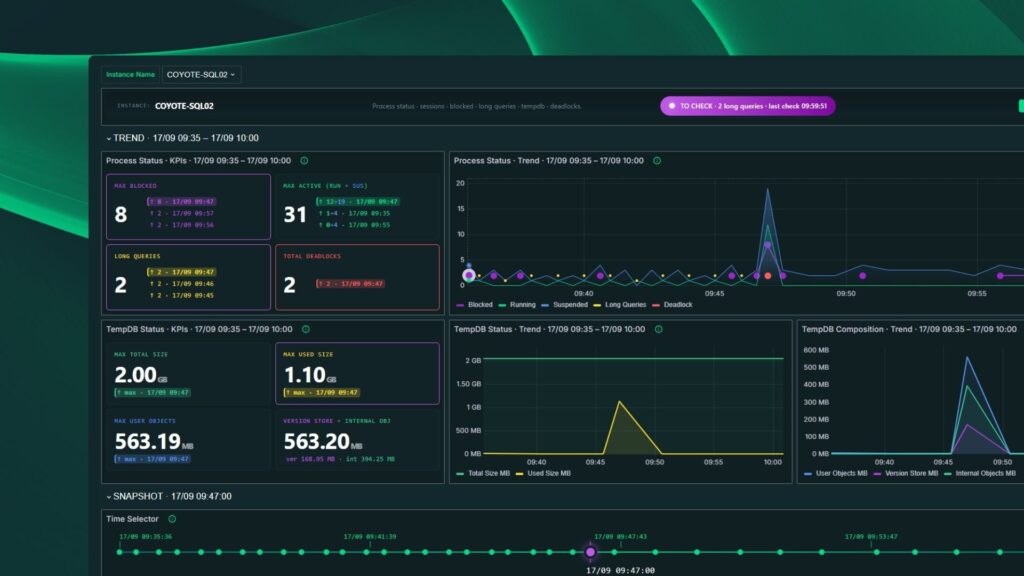
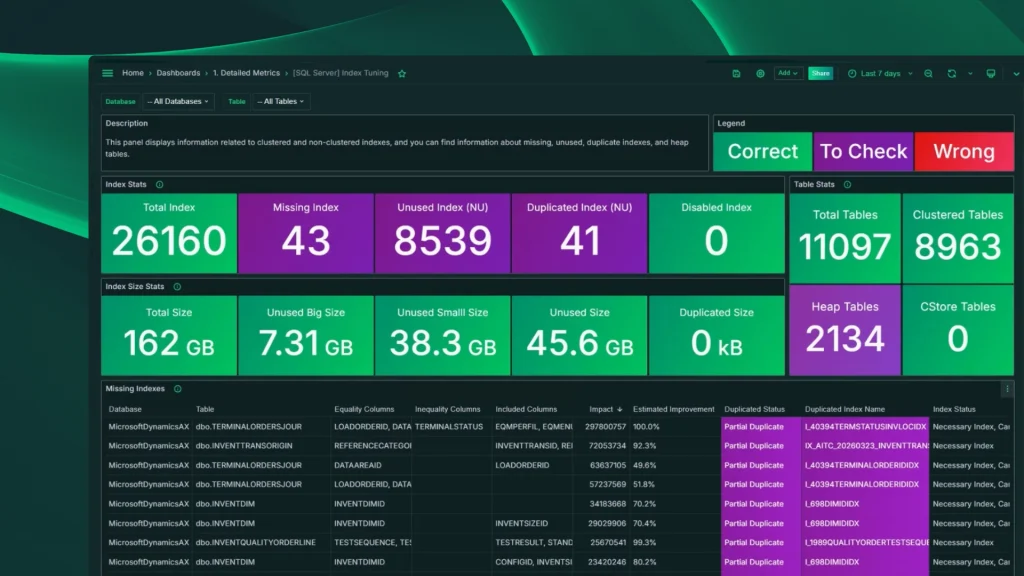
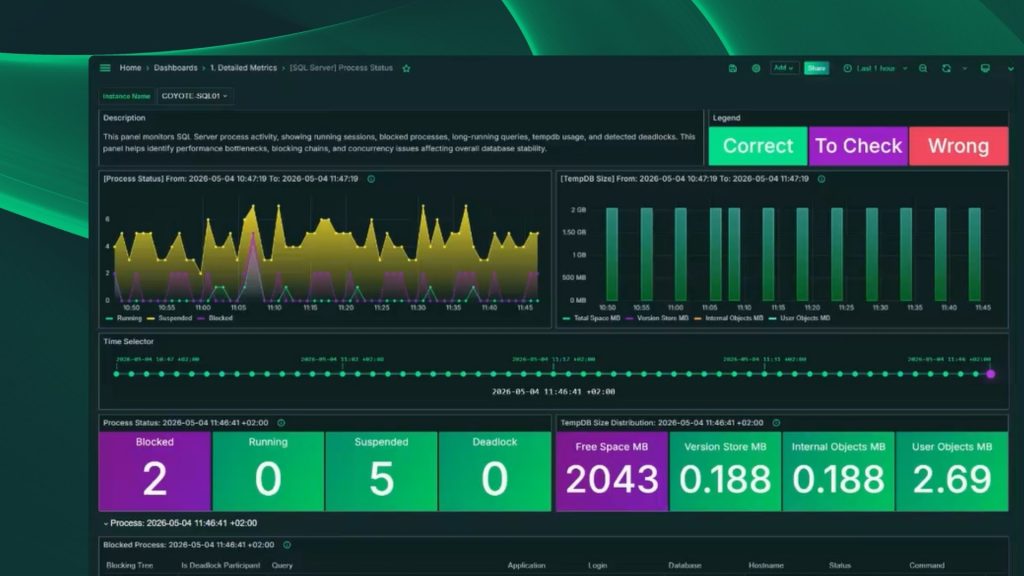
This is where the Best Practices panel in Coyote Monitor comes in. Instead of running manual scripts on each instance and eyeballing the generic guidance against what the experts recommend, Coyote Monitor automatically evaluates the configuration of all your SQL Server and Managed Instance environments and tells you the recommended settings for each server’s context. You get the full picture at a glance, without having to remember what value each setting carries on each machine.
In summary
SQL Server best practices are essential as a starting point, but Microsoft’s standard is built for “any server,” not yours, and many of its thresholds haven’t been updated in years. Every setting —cost threshold, MAXDOP, memory— demands looking at your hardware and workload, and often cross-referencing the official docs with expert judgment from the community. By hand it’s doable on one instance; across a fleet of servers, you need something to analyze it for you.
If you manage more than one SQL Server or Managed Instance and want to see how Coyote Monitor evaluates your configuration against best practices automatically, try it free for 30 days.
Frequently asked questions (FAQs)
What are the most important SQL Server best practices?
The most critical ones are MAXDOP, cost threshold for parallelism, and max server memory. Microsoft’s default values are a generic starting point, not an optimal configuration for your server: they need to be tuned to your actual hardware, workload type (OLTP, OLAP, mixed), and the number of instances sharing the same machine.
What is the recommended MAXDOP value in SQL Server?
It depends on your server topology and workload type. Microsoft’s guidance suggests not exceeding the core count of a single NUMA node, but on OLTP environments with many small concurrent queries, starting with a moderate value like 4 and validating with real metrics is usually better. CXPACKET waits alone don’t justify lowering MAXDOP.
What should the cost threshold for parallelism be set to?
The default value (5) is a relic from the ’90s and allows trivial queries to go parallel unnecessarily. The expert community generally recommends a range of 20 to 50 or higher, based on the actual estimated cost of the plans running on your instance.
Do SQL Server on-premises best practices apply the same way in Azure SQL?
Not exactly. In Azure SQL Managed Instance and Azure SQL Database, memory is managed by the platform, so max server memory is not configurable. The default MAXDOP is 8 (not 0 as in on-premises) and is adjusted via database scoped configurations. The levers change, but the need to review and tune configuration does not go away.
How do I know if my SQL Server is configured according to best practices?
You can audit key parameters by querying sys.configurations and cross-referencing the values against Microsoft’s documentation and expert community recommendations. If you manage multiple instances, doing this manually doesn’t scale: tools like Coyote Monitor automatically evaluate the configuration of all your instances and show which settings need attention in a single panel.